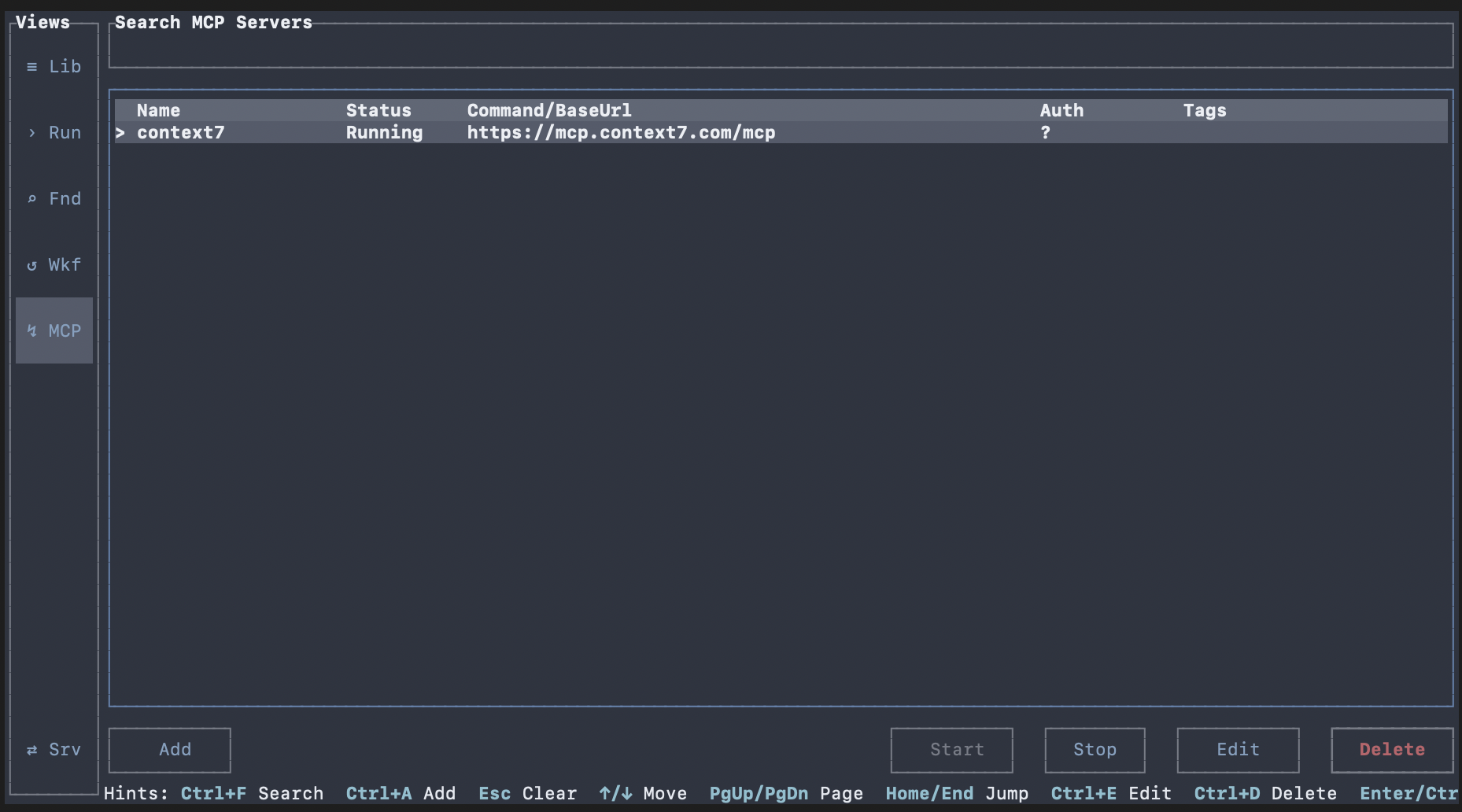
MCP Plugins
Manage plugin lifecycle and configuration from one TUI workflow, including details, validation, and save paths.
Estimated time: 10-14 min
What You Will Learn
- Extend Oatty's capabilities with your favorite MCP servers.
- Inspect MCP inventory and open MCP details.
- Start, stop, and restart MCP from table and details contexts.
- Validate and save editor updates safely.
- Define remote headers or local env vars in editor key-value rows.
Overview
Plugins are a powerful way to extend Oatty's capabilities with your favorite MCP servers (http or stdio).
Use the Plugins view to manage plugin lifecycle and configuration from one TUI workflow.
Details and validation errors are surfaced in the TUI, and credentials are stored using your OS keychain where available.
Define remote headers or local env vars in the key-value editor to support vendor requirements.
expected Goal: Use MCP servers to extend Oatty's capabilities.

Prerequisites
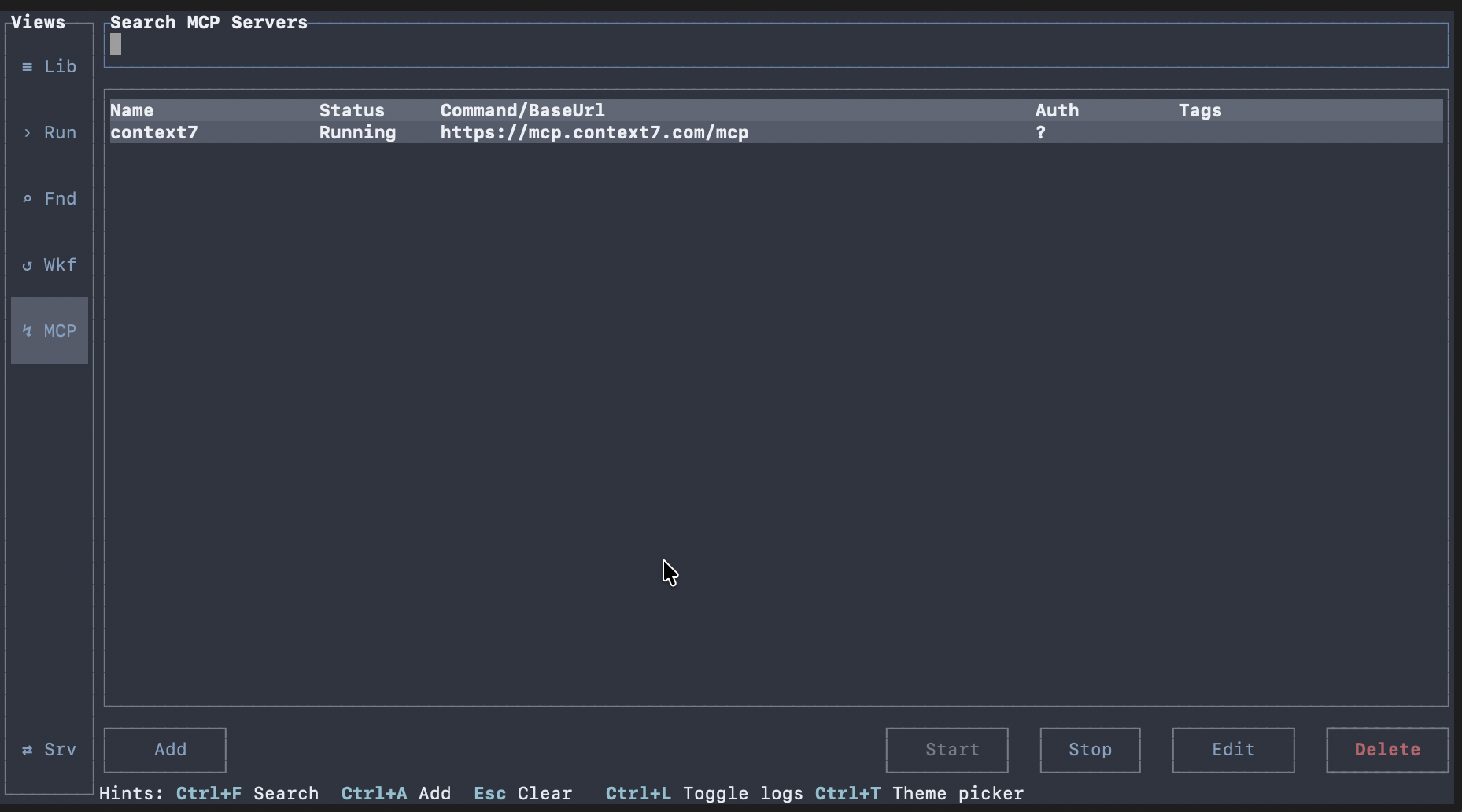
Open the Plugins view.
Confirm at least one plugin entry is present.
expected Plugin table loads with search, list, and action controls.

recovery If no plugins are listed, create or import plugin definitions first.
Add or Edit a Plugin Configuration
Open plugin editor for add/edit flows.
Use Remote transport to define request headers in the key-value editor.
Use Local transport to define environment variables in the same editor.
Add required auth values such as `Authorization` for remote integrations when needed.
Validate configuration before save.
Save after required fields and validation pass.
expected Validation feedback is shown, and save persists valid plugin configuration.
recovery If save is disabled, resolve validation issues and required fields first.
advanced The key-value editor label switches by transport: Headers for Remote, Env Vars for Local.
Use Plugin Table Operations
Select a plugin row from the table.
Open details from the selected plugin.
Use start, stop, and restart actions from the table-level controls.
expected Selected plugin actions execute and status updates reflect control operations.
recovery If actions are unavailable, verify a plugin row is selected and supports the target action.

advanced Details, edit, and start/stop/restart are available through dedicated hotkeys in focused table context.
Inspect Plugin Details
Open plugin details from the selected row.
Review metadata, logs, and exposed tool information.
Run control operations from details when needed.
expected Details modal loads plugin metadata and tool/log sections for the selected plugin.
recovery If details fail to load, refresh details and verify plugin is still selected.
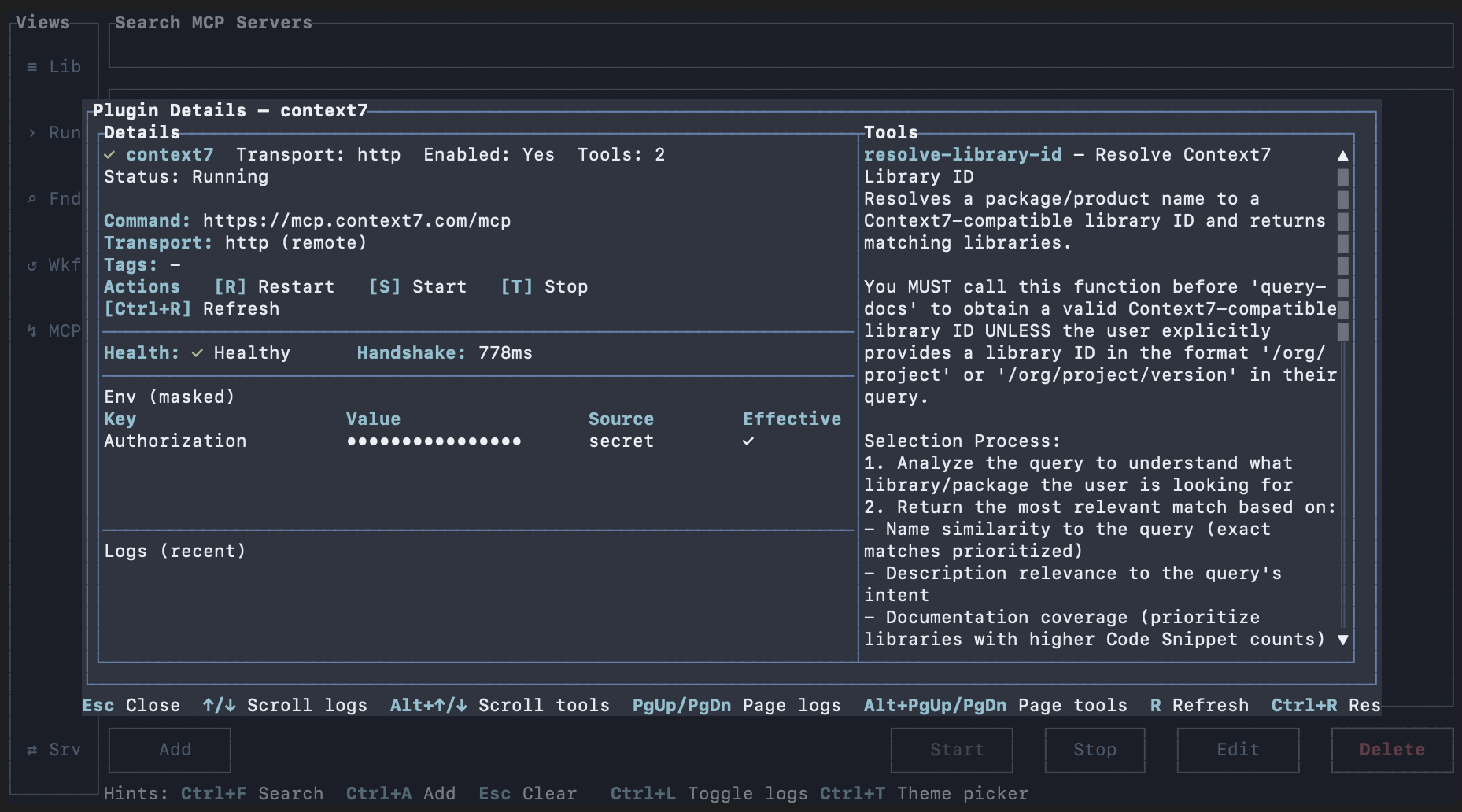
advanced Details includes explicit error rendering when detail loading fails.
Next Steps
Continue to MCP HTTP Server to expose Oatty tools over a local MCP endpoint.
Return to Workflows Basics to combine plugin-backed tools with workflow execution.
expected You can operate plugin lifecycle and configuration with predictable outcomes.