Search for and Run Commands
Use the TUI command flow to find commands quickly, execute with confidence, and inspect results after completion.
Estimated time: 10-14 min
What You Will Learn
- Run the primary TUI search-to-execution path.
- Use command help and hints before execution.
- Use Find browser to inspect and hand off commands.
- Use CLI fallback for automation and scripts.
Overview
Use the TUI to find and execute commands.
Use command help and hints to confirm expected inputs and command behavior.
Leverage value providers to provide dynamic inputs.
Use CLI fallback for automation and scripts.
expected Goal: You can find and execute commands in the TUI with minimal friction.

Prerequisites
Launch Oatty with `oatty`.

Import at least one catalog so commands are discoverable.
Keep logs available for execution verification.
oattyexpected You can open Run Command and see command suggestions from your imported catalog.
recovery If no commands appear, import a catalog first in Library.
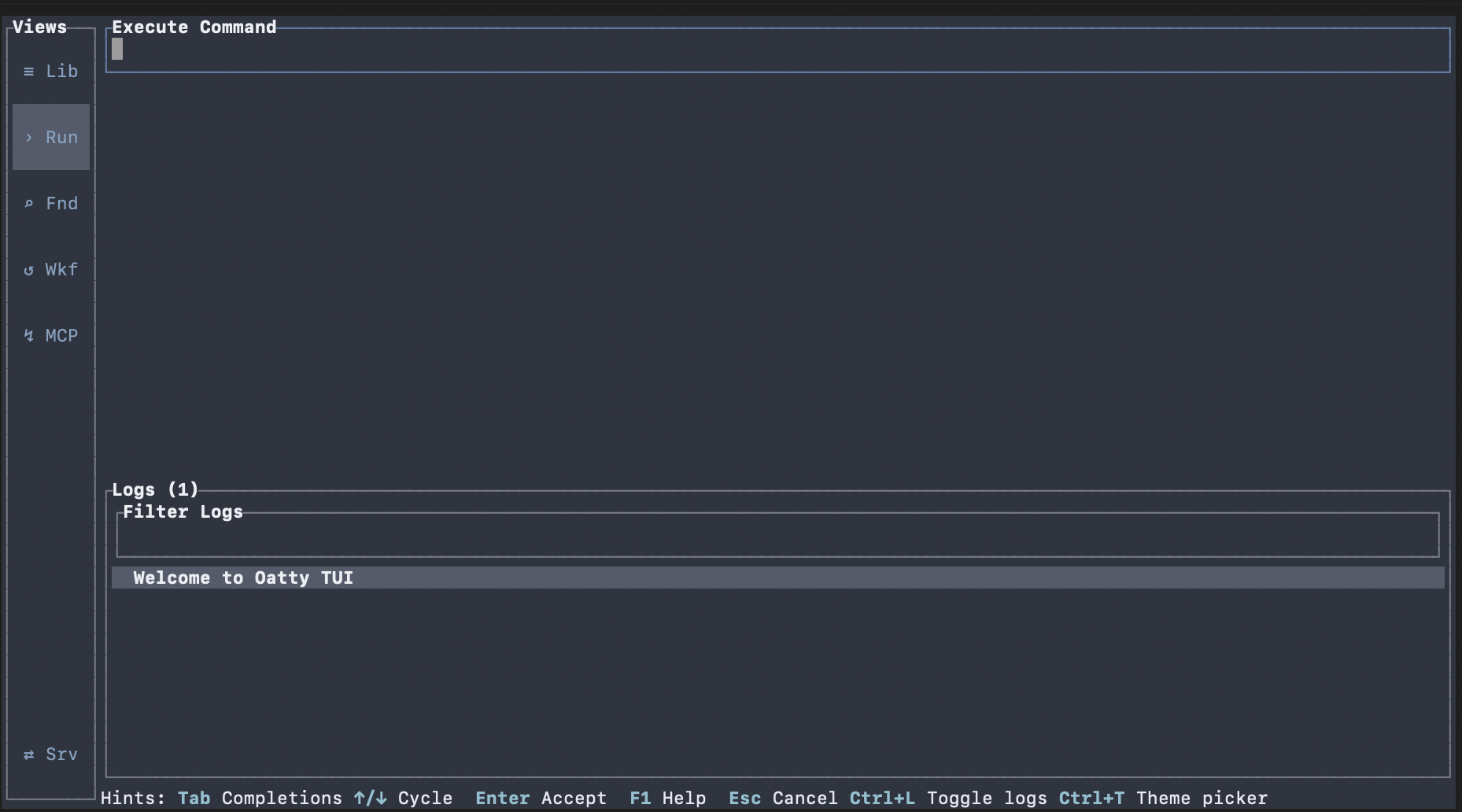
fallback Catalog import fallback: `oatty import <path-or-url> --kind catalog`.
Search for and Select a Command
Navigate to Run Command from the left navigation.
Type a task phrase such as `create`, then press TAB.
Use Up and Down to change selection in the suggestion list.
expected Relevant commands are listed and selectable in the suggestion list.
recovery If search returns nothing, verify catalog import and try broader search terms.
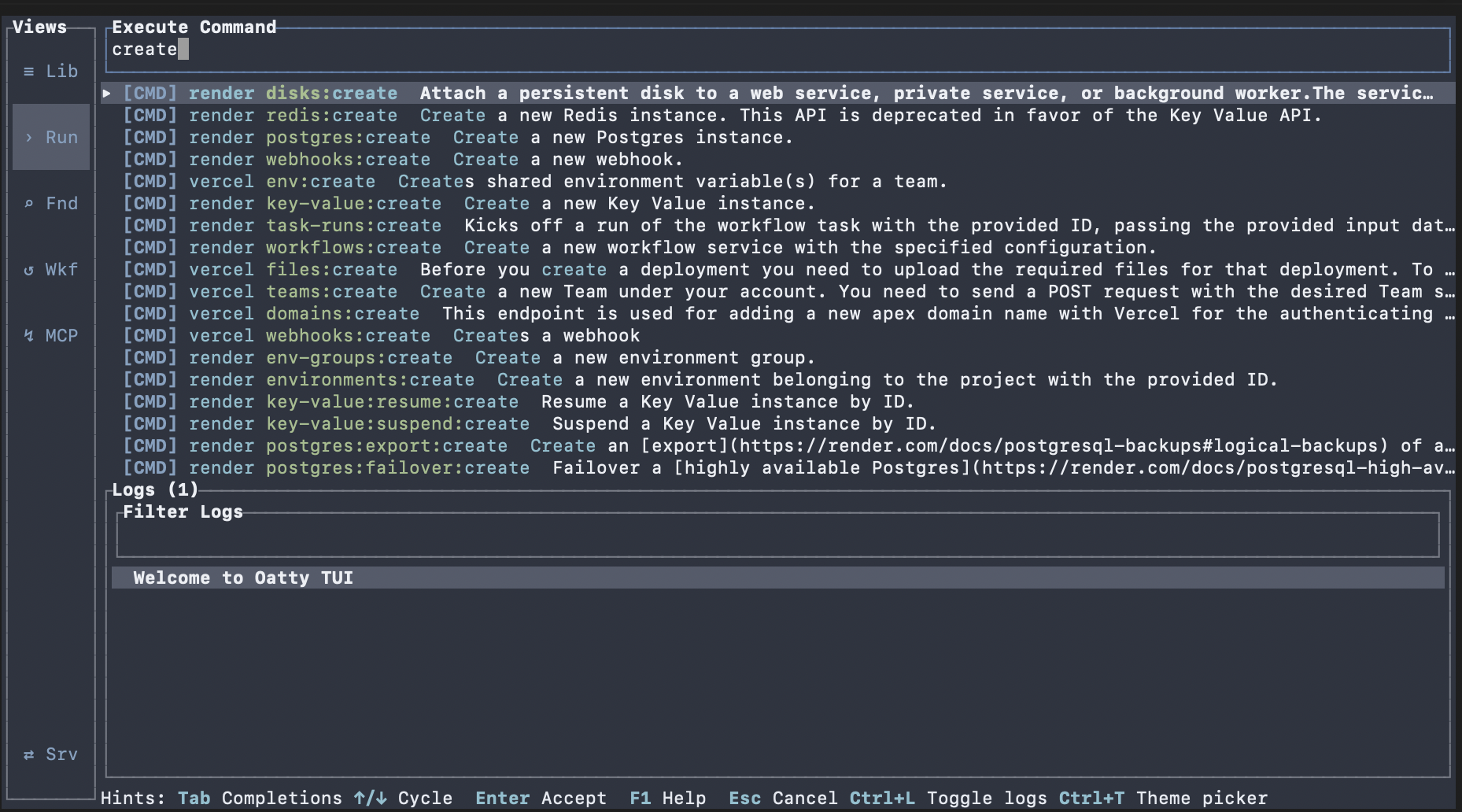
advanced Suggestions are positional. Command arguments and flags are also searchable once a command is selected from the list.
Review Help Before Running
Open command help from the active command context by pressing F1.
Verify required inputs and expected command shape.
Return to input using Esc the key and complete required values.
expected Help modal shows the full command metadata.
recovery If help is not shown, verify the desired command is selected in the suggestions list or the command has been typed in the input.
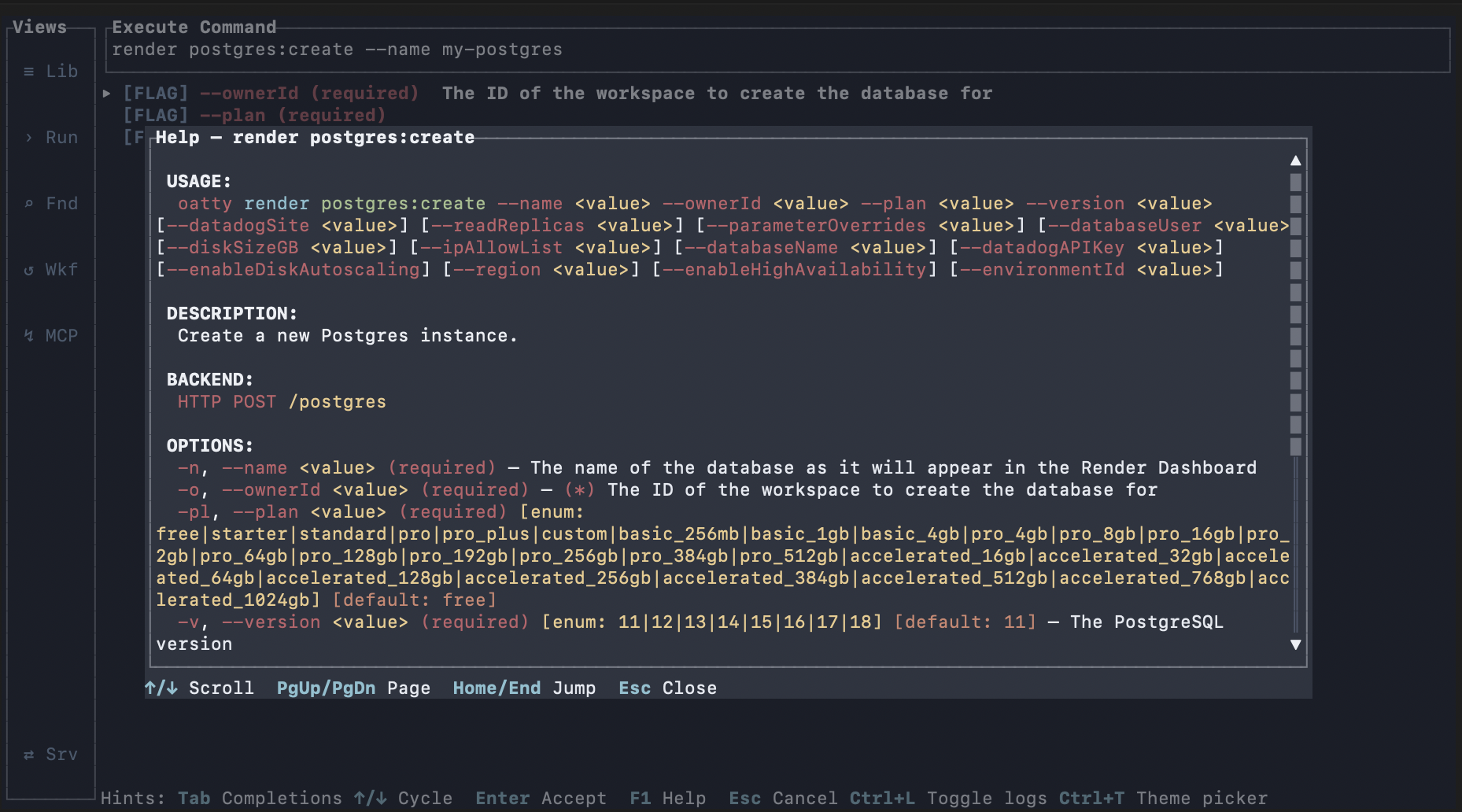
advanced Use help to quickly reference the full command details including args, flags, and defaults. Use Esc to close help and return to input.
Execute and Inspect Output
Run the selected command from the command runner.
Inspect structured output in the result view.
expected Execution reaches a terminal status, and output/logs show the final result.
recovery If execution fails, an error message is displayed and a log entry made - adjust inputs or address message contents and rerun.
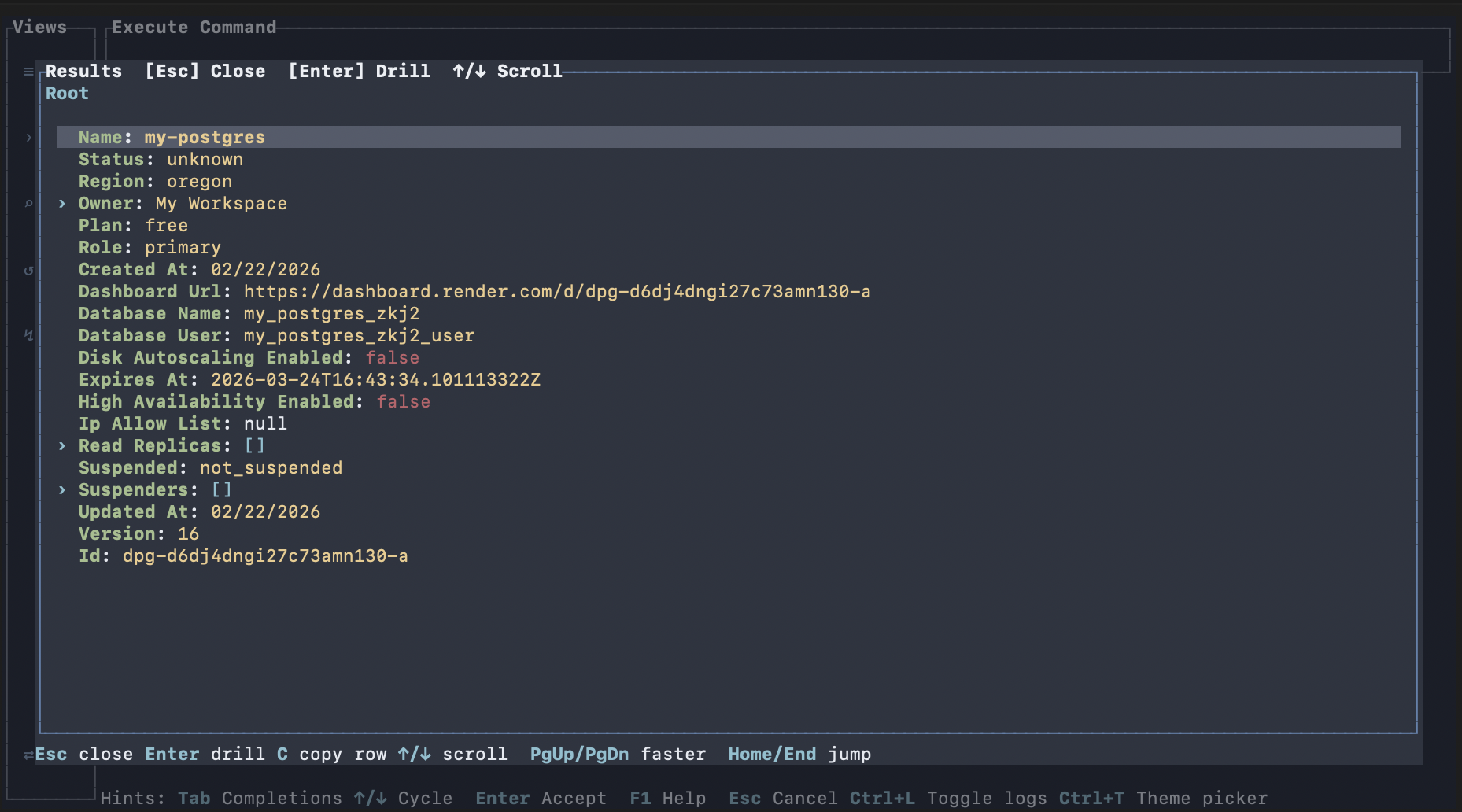
fallback Run the same command in CLI for scripts and CI with explicit flags and arguments.
Use Find/Browser for Discovery
Open Find to browse commands with summaries and categories.
Select a command and send it to Run Command.
Execute from Run Command after reviewing inputs.
expected A command selected in Find appears in Run Command ready for execution.
recovery If handoff does not occur, confirm focus is in Find and retry the handoff action shown in hints.
advanced Find is best for exploration; Run Command is optimized for fast execution loops.
CLI Fallback for Automation
Use the TUI first when you need to discover the right command path.
After you know the exact canonical command, run that command directly in scripts and CI with explicit inputs.
Use `oatty --help` and imported command groups to verify what is available in the current environment.
expected You can execute the same command path outside the TUI.
recovery If CLI execution differs from TUI expectation, verify command arguments and active catalog configuration.
advanced Use TUI for discovery and validation first, then promote the exact command line into automation once the catalog-backed command path is stable.
Next Steps
Continue to Library and Catalogs to manage command sources.
Then continue to Workflows to compose repeatable multi-step execution.
expected You can discover and run commands reliably in both TUI and CLI contexts.