 OATTY
OATTYDocumentation
Quick Start
Start in the TUI, import a catalog, run a real command, then run a workflow with CLI fallback when needed.
Estimated time: 10-15 min
What you'll learn
- Use the TUI layout, focus movement, and help affordances with confidence.
- Import a catalog and discover commands through the interactive TUI path.
- Run a command and verify results in the logs and result views.
- Run a workflow end-to-end with structured inputs and step status.
Install Oatty
Install Oatty with npm for the fastest setup.
Run `oatty --help` to verify the install.
npm install -g oatty
oatty --help
expected: The `oatty --help` command prints usage and exits successfully.
recovery: If the command is missing, restart the shell and check your PATH. For source builds, run from the release binary path.
Alternative installation: If npm is unavailable, build from source: `cargo build --release` and run `./target/release/oatty`.
Launch the TUI
Launch the interface with `oatty` in your terminal.
Identify the left navigation, main content pane, and the hints bar.
oattyexpected: The TUI opens with visible navigation and an empty Library view.
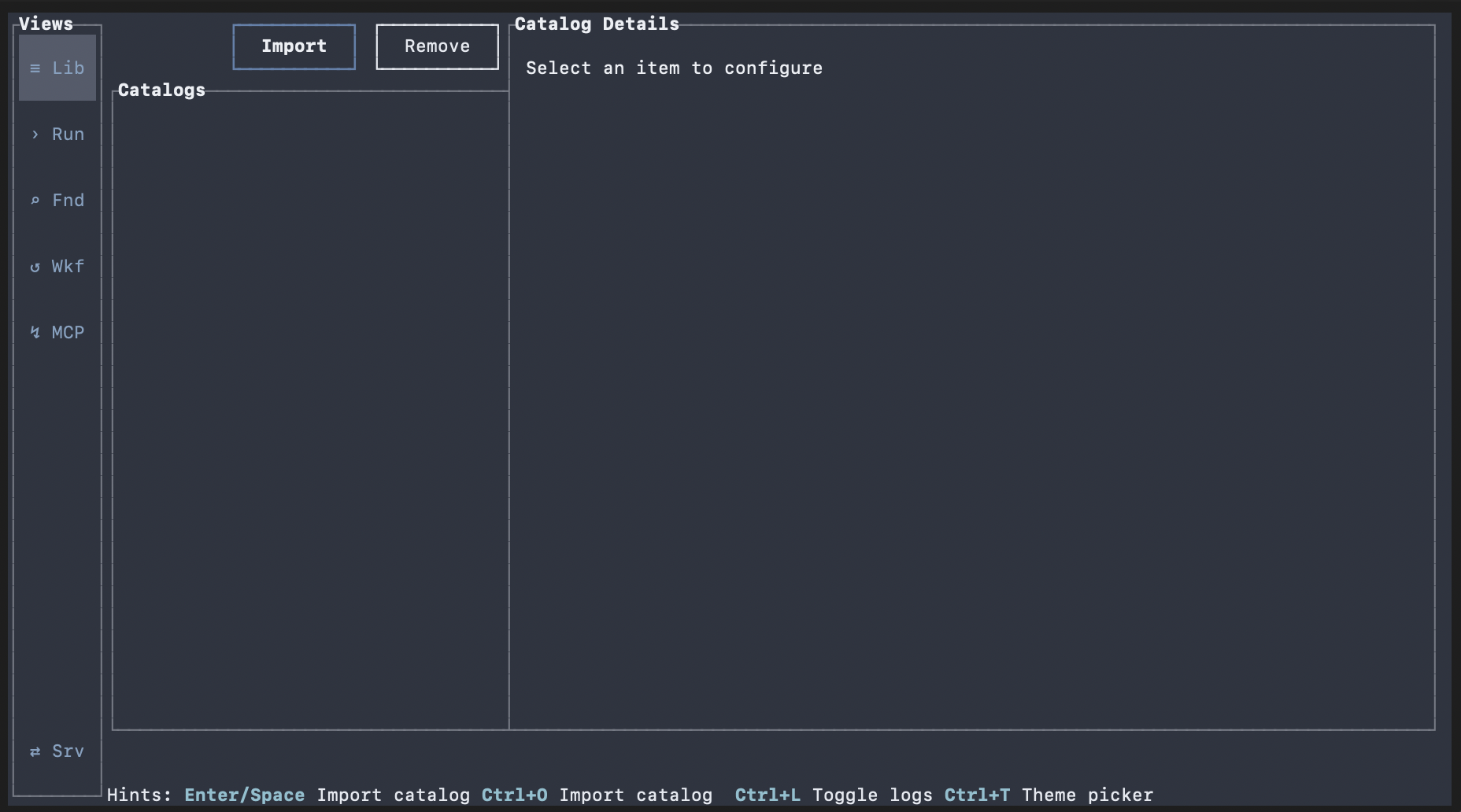
recovery: If the UI does not render correctly, increase terminal size and relaunch. If colors are unreadable, verify your terminal supports 256 colors.
advanced: Power-user affordances: `Ctrl+L` toggles logs and `Ctrl+T` opens the theme picker when enabled.
Import Your First Catalog
Open the Library and look for the Import button. Tab until it's focused, then press Enter or Space (or click with your mouse).
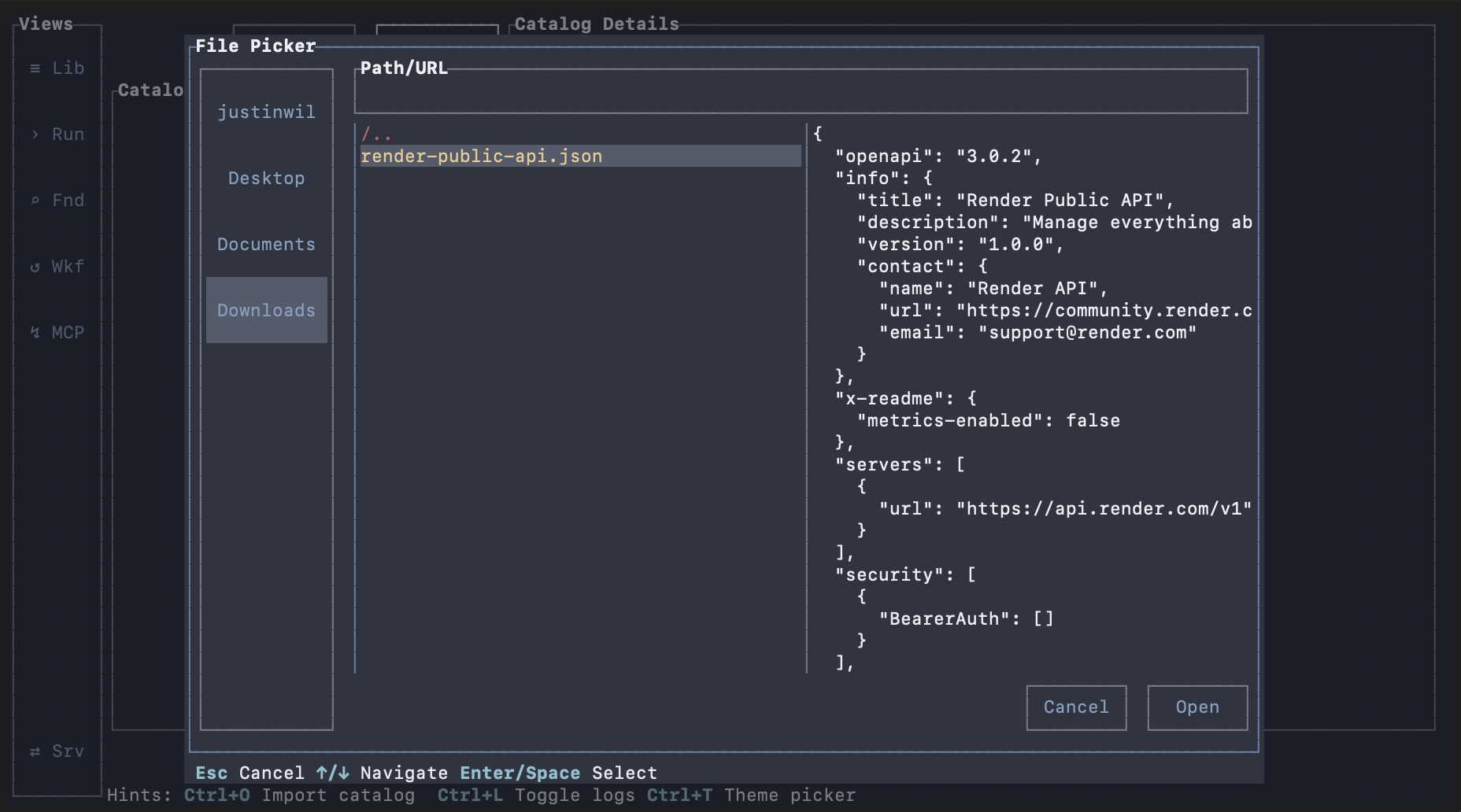
expected: Oatty allows you to browse your filesystem or paste a URL and hit Enter or click the Open button to import.
recovery: If import fails, verify the schema path/URL and format. Oatty currently supports OpenAPI v3 in both YAML and JSON formats. Retry import from Library, or run the CLI fallback to inspect errors.
fallback: CLI import fallback: `oatty import <path-or-url> --kind catalog` (supports path and HTTP/HTTPS URL).
Optional Command Prefix
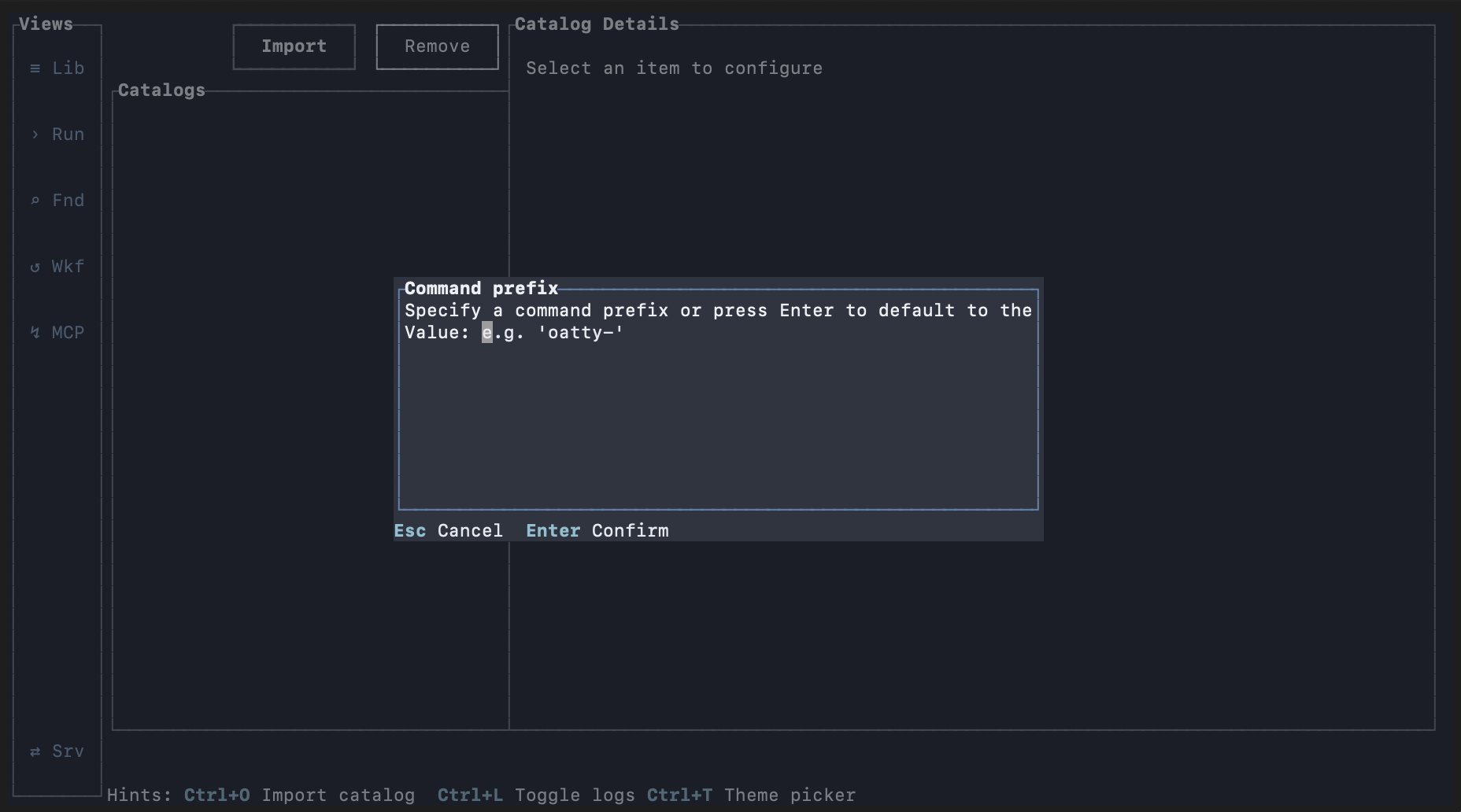
An optional custom command prefix dialog will appear after choosing a file or pasting a URL. This allows you to customize the command prefix for the imported catalog, which can be useful for organizing commands or avoiding conflicts with existing commands.
Skipping this step will derive the prefix from the schema directly.
expected: An optional custom command prefix dialog will appear allowing you to customize the command prefix for the imported catalog.
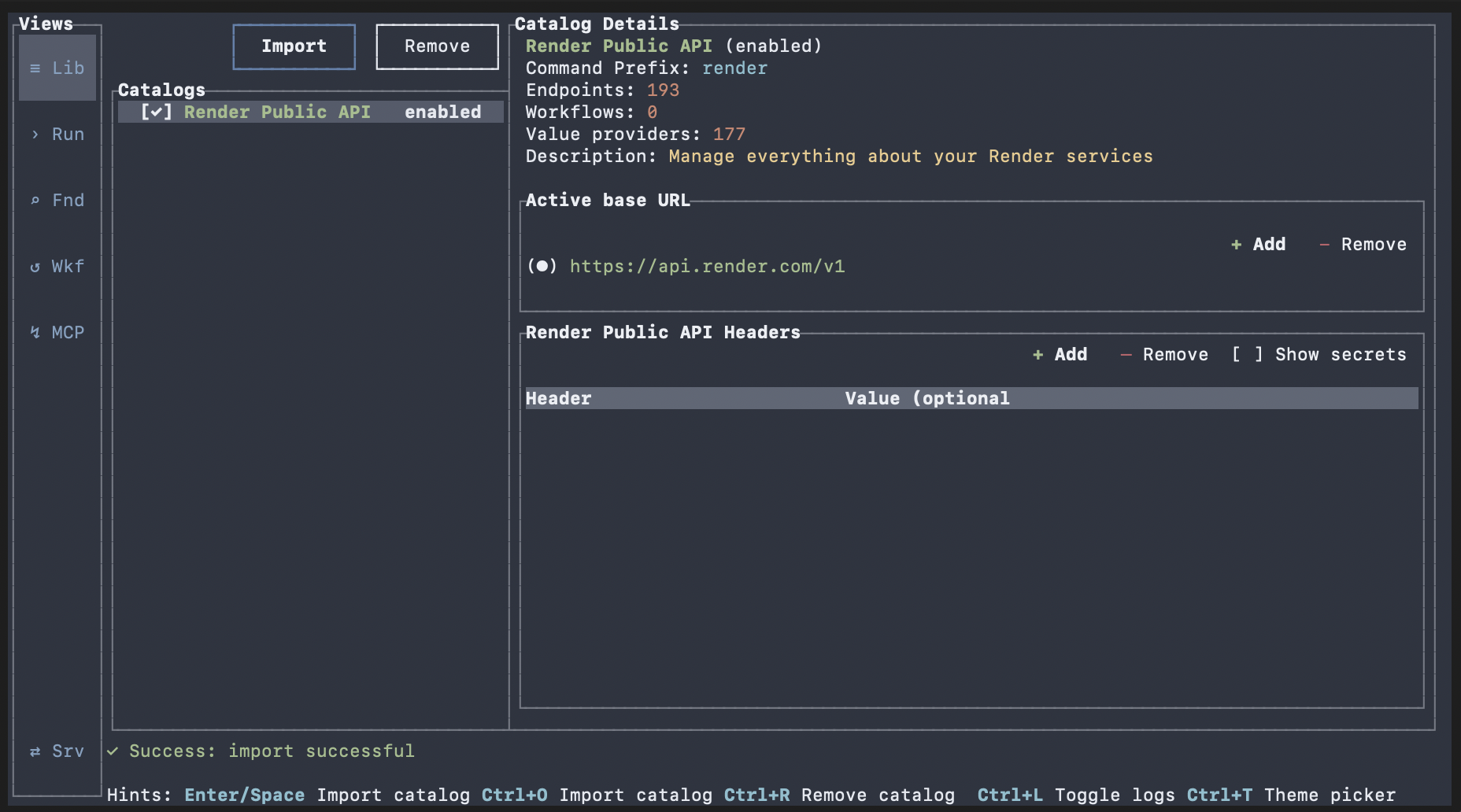
expected: The Library view updates with the imported catalog and shows the summary of what was imported.
recovery: If the custom prefix you enter is incorrect, you must remove the catalog and retry the import.
Complete Import
The import process will complete after you press Enter or click the Open button. The Library view will update with the imported catalog and populate the details panel.
recovery: If the import fails, verify the schema path/URL and format. Oatty currently supports OpenAPI v3 in both YAML and JSON formats.
Configuration management: Advanced flow: add/remove catalogs and manage base URLs in Library; this is covered in Learn: Library and Catalogs.
Discover and Run a Command
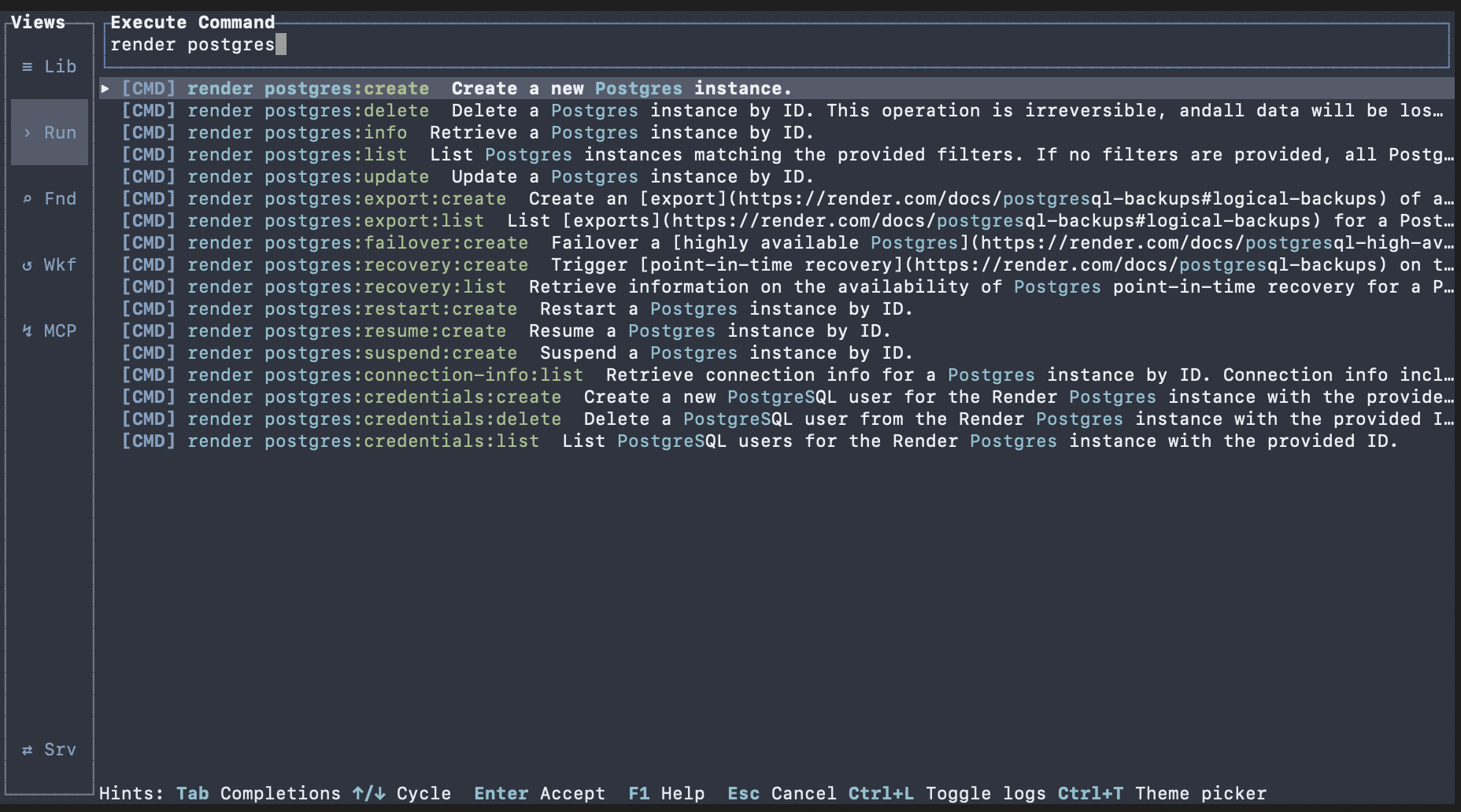
Open Run Command and type a search phrase. Matching commands appear as you type.
Select a command, then use Tab and Shift+Tab to move between inputs (flags and arguments) and enter values.
Execute the command and inspect JSON output, logs, and status in the UI.
expected: Command execution completes and results/logs show the final status.
recovery: If no command appears, confirm a catalog is imported. If execution fails, open command help and verify required inputs.
fallback: CLI fallback for the same action: run the selected command directly with required flags/args.
Command help: Read the help (F1) for the command to understand required inputs and flags. Verify the Authorization header is configured and correct.
Advanced discovery: For deeper discovery, use the Find/Browser view to inspect commands and send selected entries back to the runner.
Import and Run a Workflow

Open the Workflows view and import a workflow file from your machine or a URL.
Select the imported workflow, press Enter to open inputs, and provide any required values.
Run the workflow and inspect step status, logs, and final outcome from the workflow runner.
expected: The workflow appears in the list, required inputs can be filled in, and the run reaches a terminal status with step-by-step visibility.
recovery: If import is blocked, verify the workflow file is valid YAML or JSON and that any required catalogs are already installed. If a run fails, inspect the first failing step before retrying.
fallback: CLI fallback: `oatty import ./workflow.yaml --kind workflow`, `oatty workflow preview --file ./workflow.yaml`, then `oatty workflow run --file ./workflow.yaml --input key=value`.
Continue learning: Use the Workflows Basics page for deeper guidance on input collection, pause/resume, and workflow run controls.