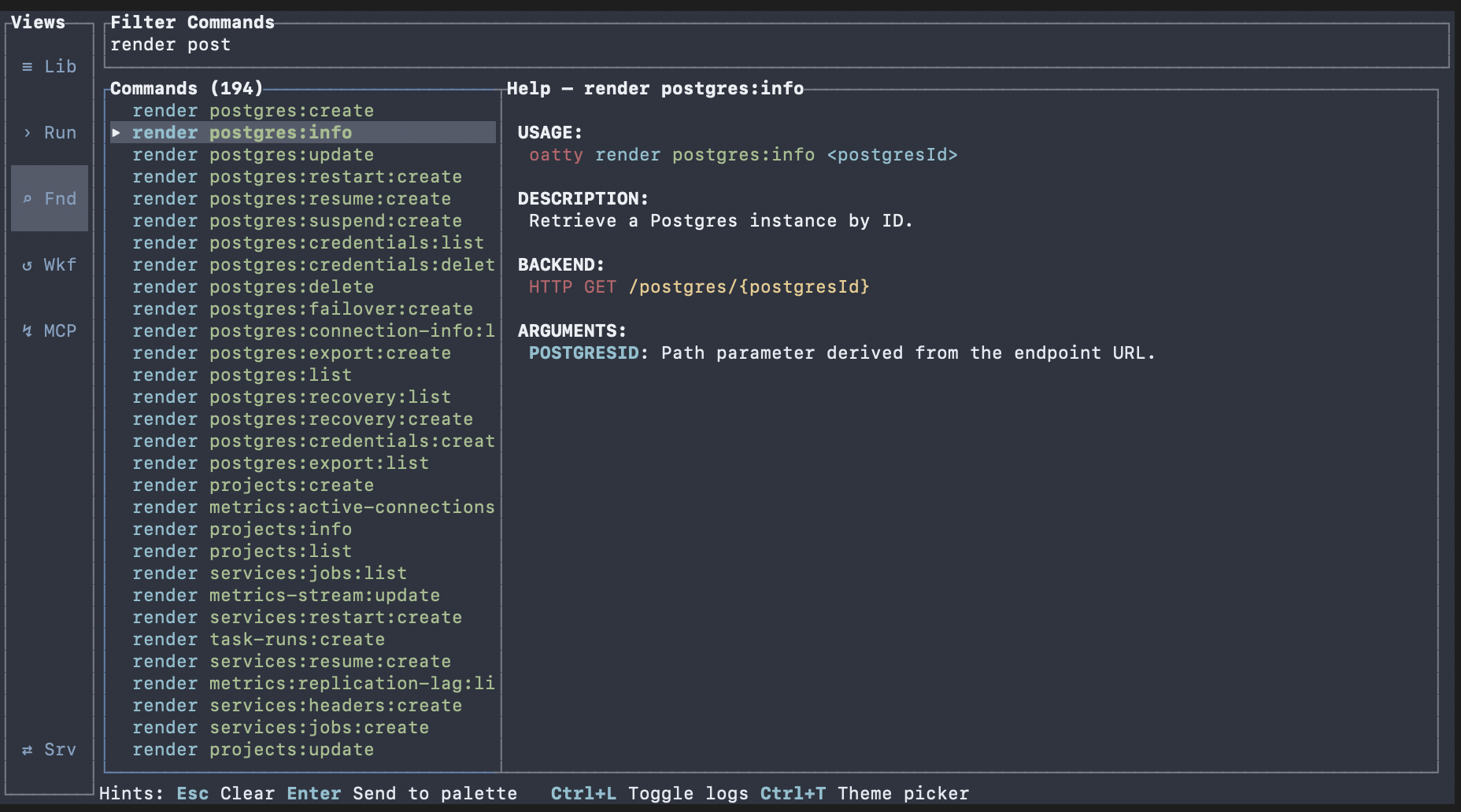
Getting Oriented
Learn the core interaction model so you can navigate Oatty quickly and recover from common UI friction.
Estimated time: 8-12 min
What You Will Learn
- Move focus predictably with keyboard and mouse.
- Use logs, hints, and help affordances during execution.
- Keep a stable mental model across views and modals.
Prerequisites
Launch the TUI with `oatty`.
Use a terminal size that shows navigation, content, and hints clearly.
Confirm your keyboard sends Tab, Shift+Tab, and Esc correctly.
oattyexpected The default TUI view opens with visible focus and hints.
recovery If rendering clips, resize the terminal and relaunch. If key input is inconsistent, verify terminal key settings.
Navigation Model
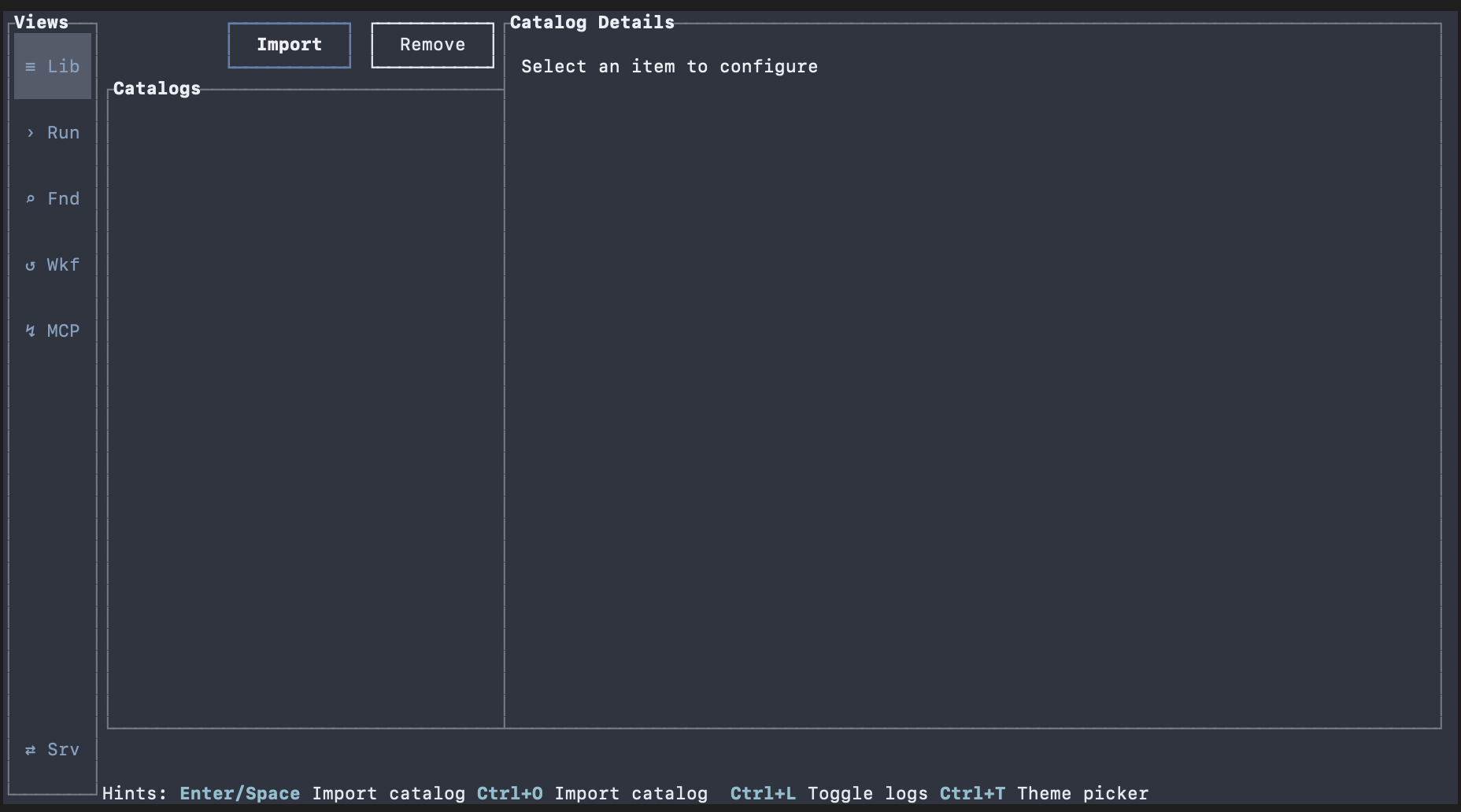
Use the left navigation to switch top-level views.
Treat each view as a focused workspace with shared interaction rules.
Return to the same view repeatedly to build speed.
expected You can move between Library, Run Command, Find, Workflows, Plugins, and MCP Server without confusion.
recovery If a view does not react to input, cycle focus with Tab until the target region highlights.

advanced Most views use Tab and Shift+Tab as the primary focus-cycle pattern.
Keyboard and Focus
Press Tab to move focus forward.
Press Shift+Tab to move focus backward.

When a list is focused, press Up and Down to move one row.
When a long list is focused, press PgUp and PgDown to move faster.
List navigation keys are focus-scoped, and the hints bar remains the source of truth for active view behavior.
Press Esc to close modals and transient overlays.
expected Focusable areas highlight consistently, and modal dismissal works with Esc.
recovery If focus appears stuck, close overlays with Esc, then cycle Tab until the intended element gains focus.

advanced Hint spans show context-sensitive actions; base focus movement is intentionally omitted from hints in many views.
Mouse Interaction
Click list rows to select entries.
Click buttons to trigger the same action exposed through keyboard controls.
Use mouse selection for quick scanning and keyboard for repetitive execution.
expected Clicking an interactive element updates focus and action state predictably.
recovery If clicks do not act on the expected element, click once to focus the panel, then click the target action again.
advanced Some modal flows intentionally close through mouse clicks; Esc remains the global close behavior.
Logs and Inspection
Toggle logs with Ctrl+L.
Use logs to verify command/workflow status and inspect failures.
Filter and inspect entries before rerunning actions.
expected The logs panel opens and closes without losing your current workflow context.
recovery If no entries appear, execute a command first. If the panel feels unresponsive, refocus it with Tab before filtering.
fallback For non-interactive automation logs, run commands with CLI output and collect logs in your shell/CI system.
advanced Layout can place logs differently at wider terminal sizes while preserving the same interaction model.
Hints and Help

Hints are shown as hot keys at the bottom of the terminal window.
These update to show you which actions are available in the focused area.
Treat hints as the fastest way to know which actions are available in the active view.
expected You can identify available actions in the active view without leaving the screen.
recovery If hints do not match behavior, confirm the active focus area. Hints are context-sensitive.
advanced Parent components may own shared hotkeys in specific flows; this is an intentional exception pattern.
Next Steps
Continue to Search and Run Commands for deeper execution flow.
Then move to Library and Workflows to build repeatable operations.
expected You can navigate the TUI confidently and continue through feature modules faster.